
CDXZipStream™ Excel Zip Code Add-in
Frequently Asked Questions
Answer your common questions about the CDXZipStream Excel Zip Code Addin. Find out how to calculate distance between zip codes or addresses, work with Bing Maps for routing and location based marketing, perform US Zip Code lookups, find Canadian or international post codes and more. Just click on any question below to explore the topic.
Simply press the "Buy Now" button on this web page and enter your purchase information on the screens that follow. CDXZipstream is a perpetual license that comes with 12 months of data updates and support. You can install CDXZipStream on one main and one backup machine for each user license purchased.
If you are not sure of what version to purchase please use this link to our version finder. Pricing and volume discounts for each version can be found at this link.
To continue the zip code code updates and support after one year you can purchase an optional maintenance agreement in your online cdxtech.com account. You can also use this account to upgrade your version for the difference in price or purchase other products.
You will need to install the CDXZipStream demo , activate it and download our latest data file to complete your purchase.
An article illustrating this procedure can be found at this blog link.
CDXZipStream only works on Windows versions of Excel, not Apple versions. The Microsoft .NET addin technology required is not available on the Mac. Mac users should use our CDXGeodata product and associated templates which work on both the Mac and Windows
You can access CDXZipStream from the main CDXZipStream commandbar, by right-clicking on any worksheet cell, or by directly entering a CDXZipStream function in a worksheet formula. Here is a short tutorial reviewing how to use CDXZipStream.
From the Commandbar: The CDXZipStream commandbar at the top of your worksheet includes all functionality as well as access to your account information, help file, settings, and quick start guide. To obtain demographic data for a list of ZIP Codes, for example, use your cursor to select the first ZIP Code in the list, click on the CDXZipStream button on the commandbar, and the main CDXZipStream interface will appear:
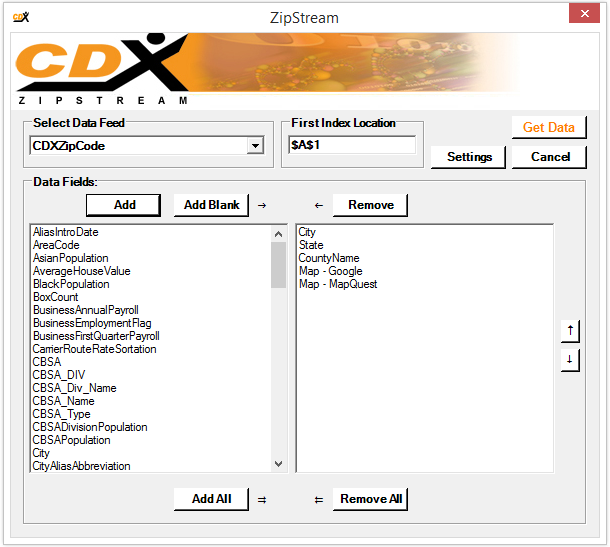
Here you can select the data feed and data fields to import. Then click Get Data
and CDXZipStream does the rest.
CDXZipStream functions that geocode, calculate driving distance, perform address verification, etc. can be accessed through the fx Formulas
button on the commandbar.
Right-click: Right-click your mouse on any worksheet cell, and from the drop-down list select CDXZipStream Functions
. You can then select any function from the list, including additional feeds for demographic data.
Enter a worksheet formula: You can also use any CDXZipStream function or data feed by directly entering it in a worksheet formula.
These programs are not required to install CDXZipStream and are not part of the CDXZipStream license. Most CDXZipStream functions do not need these to work. But if you intend to use the functions for routing calculations, geocoding, mapping, address verification or postal code lookup, then you will need to obtain a Google Maps key Here key, Bing key or install Caliper or MapPoint on your computer. CDXZipStream is compatible with Maptitude versions 2014 or later with US Data. It also works with either MapPoint North America or MapPoint Europe.
To obtain an API key for Google Maps please visit the console.cloud.google.com.
API Keys are available for Here Technologies from platform.here.com. For more information please see the following blog article
Free Bing Maps Development keys are no longer available as of 7/1/24. Existing development keys will work until 6/30/25. Enterprise keys can continue to be purchased and will be supported until 6/30/28.
CDXZipStream is compatible with 2010, 2013, 2016, 2019 or Office 365 and will run in Windows 7 and higher. It is compatible with both 32 and 64-bit versions of Excel and Windows.
The recommended system configuration is a computer running Microsoft Windows 7 or higher with a Pentium IV processor and 512 megabytes (MB) of RAM. Minimum system requirements for Office products are available here from the Microsoft website.
Functions that are used for routing calculations, geocoding, mapping, address verification or postal code lookup, require either the web service HERE Technologies, Bing Maps or desktop software Maptitude or Microsoft MapPoint. These are not included with purchase of CDXZipStream.
For the CDXRouteHere and CDXLocateHere functions, you must obtain a Here API key and enter it into CDXZipStream. Here keys can be obtained at platform.here.com.
To use the CDXRouteMaptitude and CDXLocateMaptitude functions, you must install Caliper Maptitude. CDXZipStream is compatible with the 2014 and later versions of Maptitude with US Data.
To use the CDXRouteMP and CDXLocateMP functions, you must install Microsoft MapPoint. CDXZipStream is compatible with the 2002 through 2013 versions of MapPoint North America and Europe. As of December 2014, Microsoft discontinued selling MapPoint, although it is still available from some software resellers and on Ebay.
Here are some things to consider when deciding which source of mapping data to use:
Google Maps is the premier worldwide web-based mapping service and requires an internet connection. Google provides $200 per month in free services and economical pricing for additional use. For most routing and geocode requests over this amount the cost is $5 per thousand
HERE Technologies is a worldwide web-based mapping service and requires an internet connection when used with CDXZipStream. HERE allows 30,000 free geocoding and routing calls per month with attractive pricing for higher limits.
Caliper Maptitude is desktop mapping software. CDXZipStream is compatible with 2014 versions and greater (with the exception of Maptitude 2022) with US data. It's available for a one time fee and can be used in high volume mapping and routing applications where the cost of HERE or Bing Maps would be prohibitive.
Bing Maps is in the process of being retired by Microsoft and we do not recommend it for new installations. Previously created development keys will continue to work until 6/30/25. Purchased Enterprise keys will work unitl 6/30/28
Microsoft MapPoint is a desktop mapping software that was discontinued by Microsoft in 2014. As a desktop software it is a one-time purchase and can still be found on secondary markets such as Ebay. There is no effective limit on the number of data requests. MapPoint North America covers the U.S., Canada, and Mexico, and MapPoint Europe covers countries primarily in Western Europe. Both versions were last updated in 2013. MapPoint provides travel time and distance for driving routes only. It will perform route optimization for multiple driving locations.
With all the pay per use web based services we highly recommend that you set up a up a budget overages are a concern.
You can at any time upgrade to another version of the software. An upgrade option is available from your account on the CDX Technologies website. You will only need to pay the difference between your current and new versions.
Please refer to this document CDXZipStream Data Feeds and Definitions.pdf for a complete listing of all available data.
- Demographic data feeds: U.S. only
- ZIP and postal code analysis (including distance calculations, radius and closest ZIP Code analysis, and ZIP Code list creation by city, county, state or province): U.S. and Canada. CDXZipStream also supports additional international databases such as Mexico, India and Western European countries
- Routing calculations, geocoding, mapping, address verification or postal code lookup: These require HERE Technologies, Bing Maps or Microsoft MapPoint as a source of mapping data. HERE Technologies offers world-wide coverage. Microsoft MapPoint 2013 for North America covers the U.S., Canada, and Mexico, and MapPoint Europe covers most western European countries. Address find and geocoding is available for the following:
Google Maps Worldwide
HERE Technologies Worldwide
Bing Maps Worldwide
Caliper Maptitude U.S.
MapPoint North America: U.S. and Canada
MapPoint Europe: Austria, Belgium, Denmark, Finland, France, Germany, Greece, Italy, Luxembourg, the Netherlands, Norway, Portugal, Spain, Sweden, Switzerland, and the United Kingdom.
The 30-day trial version includes U.S. ZIP Code data and all functionality. Example demographic data is provided for all data feeds. You also have the option to download Canadian postal code data to use with the trial. The trial version limits the number of calculations that can be made in each session of Microsoft Excel. There are no calculation limits in the purchased version of CDXZipstream.
The Canadian database is an optional separate purchase. It can be used to:
- Calculate distances between postal codes
- Identify postal codes in a radius area
- Find the first, second, and third closest postal codes to a target location
- Create postal code lists by city or province
Here is a short tutorial showing how the Canadian database is used.
Canadian Postal Code Analysis in ExcelCDXZipStream has a much wider variety of location-based functionality, but both CDXZipStream and CDXStreamer perform address ZIP Code lookup. If these are your primary interests, which software do you choose?
CDXZipStream is a one-time, single license purchase that includes one year of data updates. CDXStreamer is a monthly, subscription-based service. CDXZipStream can use either Bing Maps or Microsoft MapPoint as the source of address data and postal code data, and covers the U.S. and other countries. CDXStreamer uses U.S. Postal service databases, and covers only the U.S. CDXStreamer also provides ZIP+4 data which is not included in CDXZipStream. We generally recommend using CDXStreamer when high address accuracy and/or ZIP+4 data in the U.S. is required.
Right-click on a worksheet cell next to the data, and from the dropdown list under CDXZipStream Functions
, select Insert CDXDistance Function
. In the dialog box input the worksheet cell addresses of the first pair of ZIP or postal codes:
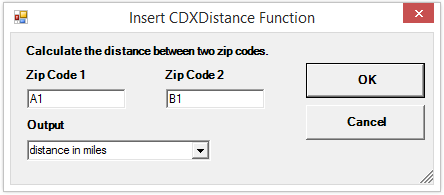
The resulting worksheet formula:
=CDXDistance(A1,B1)
can then be copied to obtain distance data for all pairs of ZIP or postal codes in the lists. An option is available to return zip code distances in miles, kilometers or nautical miles.
Getting Zip Distances in Microsoft ExcelRight-click on a worksheet cell next to the data, and from the dropdown list under CDXZipStream Functions
, select Insert CDXLocateHERE Function
or Insert CDXLocateMaptitude
or Insert CDXLocateBing
or Insert CDXLocateMP
, depending upon whether you are using HERE, Maptitude Bing Maps or Microsoft MapPoint as the data source. In the dialog box you can then input the worksheet cell location of the first address in the list, and select Latitude|Longitude
for the returned data. When using these functions with long address lists, we also recommend enabling the Autocopy
and Set to Text
options:
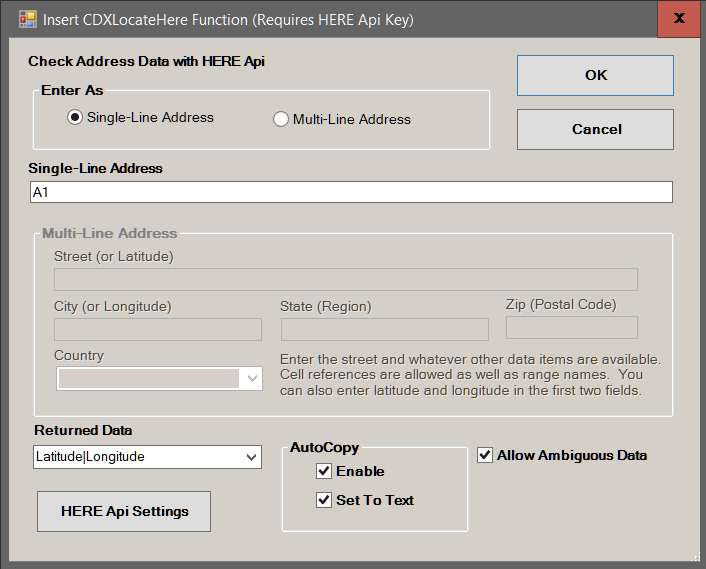
If the address is found, latitude and longitude data is returned to the worksheet. When using CDXLocateMP you can copy the resulting formula to get latitude and longitude for the entire list; CDXLocateHERE and CDXLocateMaptitude this is done automatically when using the Autocopy
option.
Here is a short tutorial showing how to geocode using HERE.
Routing and Geocoding with Excel and HERE TechnologiesTo reverse geocode, follow the same process but request Best Match
to return the closest address to each point of latitude and longitude.
We offer free Excel templates that automatically geocode and reverse geocode. Please see the template page for more information.
Right-click on a worksheet cell next to the data, and from the dropdown list under CDXZipStream Functions
, select CDXGeoData Function
followed by Insert CDXZip4 Function
. All versions of CDXZipStream have this function available. You will need a CDXGeodata account to have access to this feature. In the dialog box you can then input the worksheet cell location of the first address in the list, and select Best Match
for the returned data. When using the CDXZip4 function with long address lists, we also recommend enabling the Autocopy
and Set to text
options:
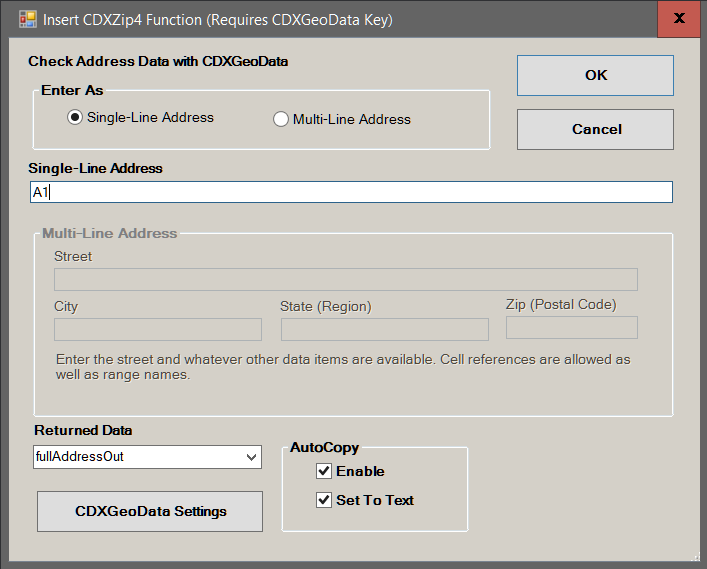
If the address is found, the best match for the address will be returned to the worksheet, including standard formatting and correct ZIP or postal code. you can copy the resulting formula to get data for the entire list; with CDXZip4 this is done automatically when using the Autocopy
option.
To obtain only the postal code for an address, select zipcode
as the returned data.
Right-click on a worksheet cell, and from the dropdown list under CDXZipStream Functions
, select Insert CDXRouteHERE Function
or Insert CDXRouteMaptitude Function
or Insert CDXRouteBing, depending upon whether you are using HERE, Bing Maps or Caliper Maptitude as the data source. In the dialog box you can then input the worksheet cell locations of the first pair of destinations, and select the desired distance or time calculation. With CDXRouteHERE you can specify driving, walking, or truck routes. When using the driving distance functions with long lists of destinations, we also recommend enabling the Autocopy
and Set to text
options:
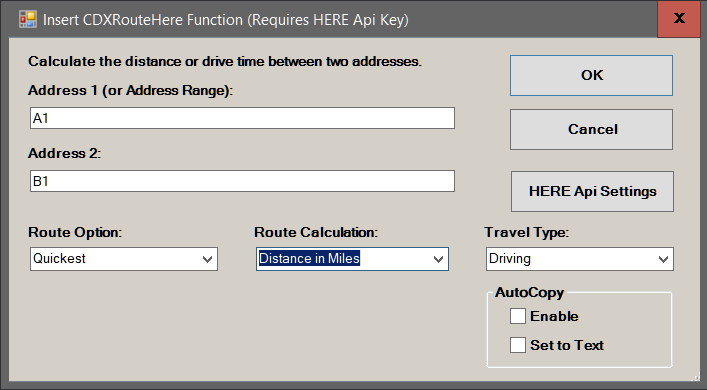
you can copy the resulting formula to get data for the entire list; or automatically when using the Autocopy
option.
Route destinations may be a complete address, a point of latitude and longitude, or a ZIP or postal code.
We offer free Excel templates that automatically calculate driving routes. Please see the template page for more information.
Right-click on a worksheet cell, and from the dropdown list under CDXZipStream Functions
select Insert CDXRouteHERE Function
or Insert CDXRouteMaptitude Function
or Insert CDXRouteMP Function
, depending upon whether you are using HERE, Maptitude, Bing Maps or Microsoft MapPoint as the data source. In the dialog box you can then input the route destinations, or the worksheet cell locations of the route destinations, and also specify the desired output, such as optimized route driving distance, time, directions, etc.:
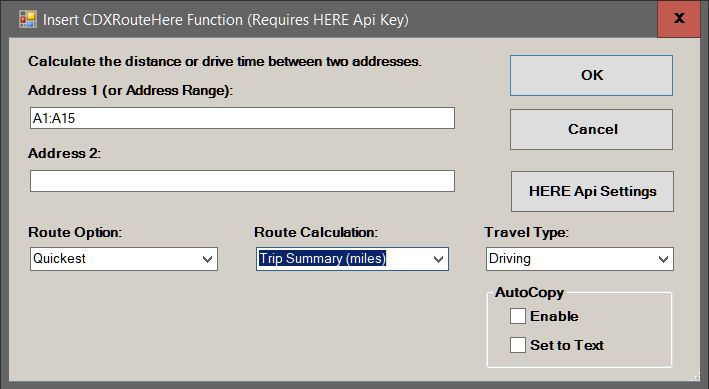
You can also request a Trip Summary that will include all data for the optimized route, including a route map. When optimizing routes, make sure route optimization for 4 or more stops is enabled in Route Settings. If using Bing Maps, you can also specify whether the endpoint (last) destination in the route is fixed or not.
Route destinations may be a complete address, a point of latitude and longitude, or a ZIP or postal code.
Here is a short tutorial showing how to optimize routes using CDXRouteBing.
Route Optimization in ExcelsWe offer free Excel templates that automatically calculate driving routes. Please see the template page for more information.
We offer Microsoft Excel templates that can automatically geocode and calculate distances to find the closest facilities to patients, the closest customers to stores, the closest warehouses to delivery points, etc. You can use the free Geocode and Sort by Distance
template or purchase the Geographic Access Analysis
template to create a comprehensive report across all locations. Please see the template page for more information.
Either Google, HERE, Caliper Maptitude, Bing Maps or Microsoft MapPoint must be used in conjunction with CDXZipStream to create maps in an Excel worksheet. Maps can be created through several functions:
CDXLocateGoogle: Map up to 100 locations a single map, using HERE.
CDXRouteGoogle: Map a route with up to 100 destinations on a single map, using HERE.
CDXLocateHERE: Map up to 100 locations a single map, using HERE.
CDXRouteHERE: Map a route with up to 100 destinations on a single map, using HERE.
CDXLocateMaptitude: Map up to 100 locations a single map, using Caliper Maptitude.
CDXRouteMaptitude: Map a route with up to 100 destinations on a single map, using Caliper Maptitude.
CDXLocateBing: Map up to 100 locations on a single map, using Bing Maps.
CDXRouteBing: Map a route with up to 100 destinations on a single map, using Bing Maps.
Functions using Bing Maps can create road, aerial, and for some areas, ordnance survey and Collins Bart maps.
CDXLocateMP: Map a single location, using Microsoft MapPoint.
CDXRouteMP: Map a route with multiple destinations on a single map, using Microsoft MapPoint.
CDXRadius: Create radius and driving time map using Microsoft MapPoint.
For CDXZipStream versions that include the premium ZIP Code database, you can link to web-based ZIP Code maps in either MapQuest or Google Maps. Use your cursor to select the first ZIP Code in your worksheet, and click on the CDXZipStream button on the commandbar. Using the CDXZipCode data feed, select the Map-Google
or Map-MapQuest
data fields. Then click Get Data
and CDXZipStream will automatically generate URL map links for every ZIP Code in your list.
Right-click on a worksheet cell, and from the dropdown list under CDXZipStream Functions
, select Insert CDXRadius Function
. In the dialog box specify the target ZIP or postal code (or its worksheet cell location), the radius distance around the target, and the result output as array, single string, or text. If you have purchased the Canadian database, also specify the database type:
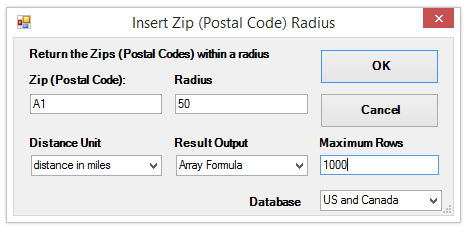
For a list of target ZIP or postal codes, specify the worksheet cell location of the first target, with the result output as a single string. The resulting formula can then be copied to get data for the entire list.
The CDXRadius function, when used with Microsoft MapPoint, can also create drive time and radius maps.
Right-click on a worksheet cell, and from the dropdown list under CDXZipStream Functions
, select Insert CDXZipList Function
. In the dialog box you can then select the state, county, or city of interest, and specify if you want the data output as a single string, text or Excel array:
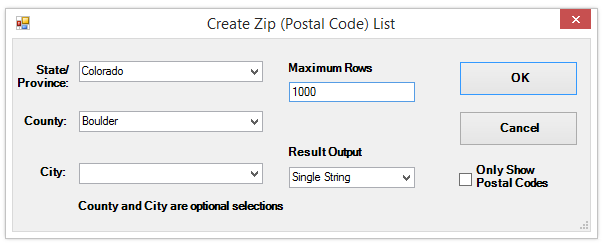
The CDXZipList function can also be directly entered in a worksheet formula. For example, if your worksheet contains state and county data in columns A and B, respectively, use the formula:
=CDXZipList(A1,B1,"",1,0)
to obtain a single string of ZIP codes for the state and county in Row 1. Then copy this formula to obtain ZIP codes for all state and county combinations listed.
Here is a short tutorial showing how the CDXZipList function is used.
ZIP Code Lists in Microsoft ExcelUse your cursor to select the first ZIP Code in the list, click on the CDXZipStream button on the commandbar, and the main CDXZipStream interface will appear:
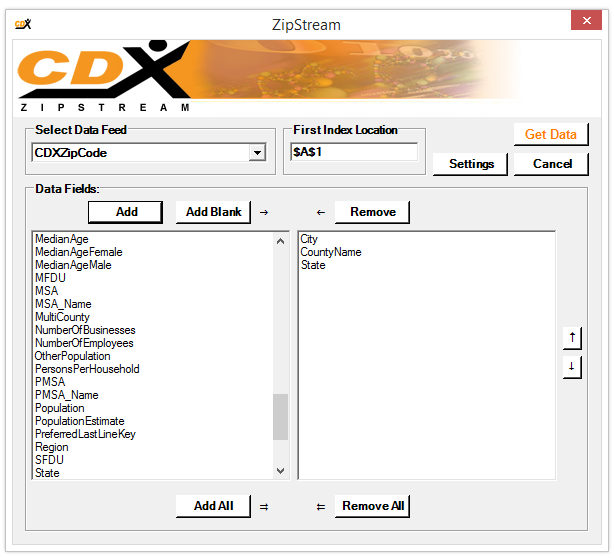
Using the CDXZipCode data feed, select the City
, CountyName
, and/or State
data fields. Then click Get Data
and CDXZipStream will automatically obtain the requested data for every ZIP Code in the list.